
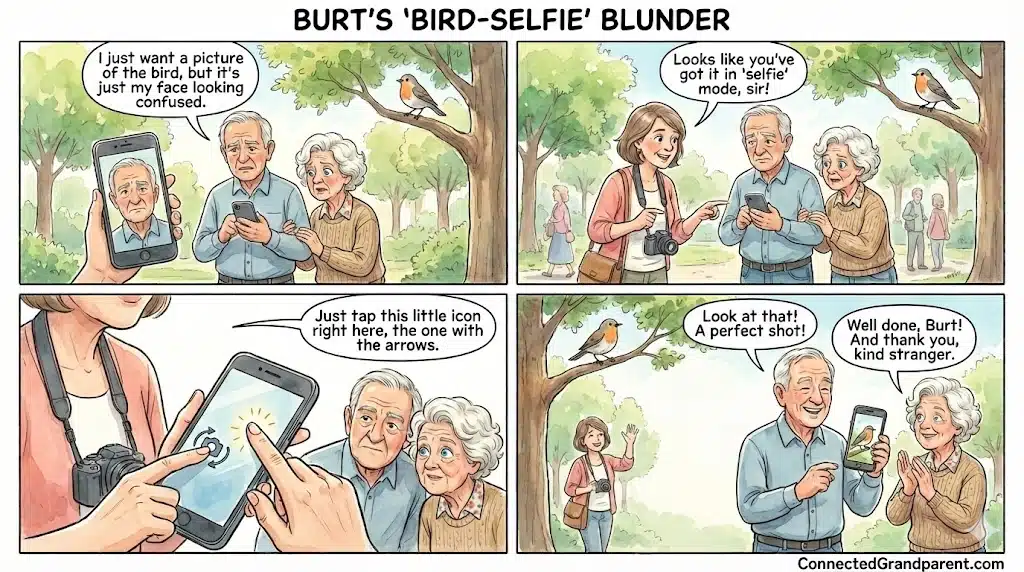
Have you ever tried to capture a beautiful moment only to find your own face staring back at you? You’re not alone. Many of us have experienced the frustration of accidentally activating the front camera instead of capturing the scene in front of us. But don’t worry, there’s a simple solution to this common problem.
Empathy for Everyday Frustrations
Why Is My Phone Camera Looking at Me?
“I just want a picture of the bird, but it’s just my face looking confused!” — Burt
Does this sound familiar? You see a beautiful sunset or your grandson Oliver doing something cute. You open your camera, but instead of the view, you see your own nose. Don’t panic. You didn’t break it. Your phone is simply in Selfie Mode.
Step 1: Open Your Camera App
Locate and tap the camera icon on your home screen to launch the camera app.
Step 2: Spot the Flip Icon
Identify the icon that looks like two circular arrows, usually found on the screen.
Step 3: Tap the Flip Icon
Press the flip icon once to switch from the front camera to the rear camera.
Step 4: Capture the Moment
With the rear camera active, aim at your subject and take the photo.
Understanding Your Phone's Camera
Modern smartphones come equipped with two cameras: a front-facing camera for selfies and video calls, and a rear-facing camera for capturing the world around you. The flip button is a convenient feature that allows you to switch between these two cameras seamlessly. By pressing this button, you can toggle between capturing your own image or the scenery in front of you.
This simple switch is designed to enhance your photography experience, making it easy to choose the right camera for the right moment. Whether you’re snapping a selfie or capturing a beautiful landscape, knowing how to use the flip function can greatly improve your photo-taking skills.